

- Smart YOLO for Epic Mode: Intelligent orchestrator that learns from implementation and adapts at runtime-updating specs and tickets, steering plans, and adjusting configurations as it executes Epics end-to-end
- YOLO for Phases Mode: Powerful automation using fixed configurations you define upfront for phase-by-phase workflows
Smart YOLO for Epic Mode
Smart YOLO brings intelligent orchestration to Epic Mode, automatically executing entire Epics end-to-end while adapting specs, tickets, and plans based on implementation discoveries. It can run multiple executions in parallel when safe to do so, dramatically reducing overall execution time. Unlike fixed automation, Smart YOLO learns from each execution and steers the Epic dynamically with minimal human intervention.Agent Selection: Smart YOLO can only select from YOLO-compatible agents (marked with ) that are configured in your workspace settings. The orchestrator dynamically chooses the most appropriate agent for each phase based on the task context.
What Smart YOLO does
- Evolves your Epic dynamically - updates specs and tickets at runtime based on implementation discoveries, refining requirements and acceptance criteria as the codebase reveals constraints or opportunities
- Steers execution strategy - analyzes implementation progress and adaptively adjusts plans, breaking down complex tickets or merging related work items as needed
- Runs executions in parallel - intelligently determines which specs and tickets can be executed concurrently without conflicts, significantly reducing overall execution time for independent work items
- Creates Executions - each handoff to a coding agent is tracked as an Execution in your Epic, providing full visibility into plans, verification results, commits, and status
- Makes smart handoffs - determines optimal execution strategy for each task based on dependencies and implementation context
- Adapts all execution settings - adjusts plans, agents, templates, verification, timeouts, and commits based on requirements and implementation context
- Runs verification loops - validates changes match intent after each execution
- Coordinates iterative refinement - if verification finds issues or implementation reveals scope changes, orchestrates fixes, plan adjustments, and re-verification
- Maintains context - preserves Epic context throughout the entire execution chain, using learnings from one execution to inform subsequent ones
Triggering Smart YOLO
To start automated execution in Epic Mode:- Use the
/executecommand in the Epic chat, or - Simply tell Traycer to execute your tickets or specs (e.g., “Execute these tickets”)
When to use Smart YOLO
Smart YOLO is ideal when:- You have specs and tickets ready for implementation (even if they need refinement during execution)
- You want to execute multiple tickets with minimal manual coordination
- You expect implementation to reveal scope changes or technical constraints
- You want an orchestrator that adapts to discoveries rather than blindly following a fixed plan
- You trust your coding agents to handle implementation details while Smart YOLO steers overall strategy
- You want automatic verification after each execution
- You want full execution tracking with plans, verification results, and commits
Smart YOLO FAQ
Can Smart YOLO execute multiple specs/tickets in parallel?
Can Smart YOLO execute multiple specs/tickets in parallel?
Yes! Smart YOLO intelligently parallelizes execution to maximize speed while ensuring correctness. It analyzes your Epic to determine:
- Which specs or tickets are independent and can run concurrently
- Which work items have dependencies that require sequential execution
- How to batch related changes to avoid conflicts
Can I override Smart YOLO's configuration decisions?
Can I override Smart YOLO's configuration decisions?
Smart YOLO operates autonomously with the
/execute command. If you need more control over specific configurations, you can use manual handoff options from the Epic view where you can specify exact settings for each execution.What happens if an execution fails?
What happens if an execution fails?
Smart YOLO monitors execution results and coordinates fixes:
- If verification finds issues, it can automatically hand off fixes to agents
- If an execution fails, Smart YOLO pauses to allow you to address the issue
- You can resume Smart YOLO after resolving failures
- All execution results are tracked in the Executions view within your Epic
Does Smart YOLO work with all agents?
Does Smart YOLO work with all agents?
No. Smart YOLO only works with YOLO-compatible agents (marked with ) that are configured in your workspace settings. The orchestrator dynamically selects from these configured agents based on the task requirements.
Can Smart YOLO modify my specs and tickets during execution?
Can Smart YOLO modify my specs and tickets during execution?
Yes! This is a key differentiator of Smart YOLO. Unlike fixed automation, Smart YOLO can:
- Update specs and tickets based on implementation discoveries
- Refine acceptance criteria when the codebase reveals constraints
- Add or modify requirements as execution uncovers scope changes
- Split complex tickets or merge related ones based on actual implementation needs
YOLO for Phases Mode
YOLO Mode for Phases automates the entire phase workflow using fixed configurations you define upfront. Once configured, it executes phases consistently without changing settings mid-execution.How it works
YOLO Mode works with two types of workflows:Plan Workflow
For implementation tasks, YOLO Mode automatically executes these steps for each phase:- Planning - Traycer generates detailed plans or skips directly to coding (based on your config)
- Coding - Automatically hands off to your selected coding agent with optional custom templates
- Verification - Validates implementation and optionally hands off selected comment categories back to your agent
- Next phase - Continues to the next phase automatically until all phases are complete
Review Workflow
For code review tasks, YOLO Mode automatically executes these steps for each phase:- Review - Traycer analyzes code and generates review comments
- Coding - Automatically hands off review comments to your selected coding agent for fixes
- Next phase - Continues to the next phase automatically until all phases are complete
Activating YOLO Mode
1
1. Create a Phases task
Start by creating a task using Phases Mode. YOLO Mode works with the phase structure you’ve already defined.
2
2. Click YOLO Mode button
Once your phases are displayed in the Kanban board view, click the YOLO Mode button to activate automation.
3
3. Select phase range
Use the side slider to select which phases to automate. You can choose from the current phase to any future phase, allowing you to automate a subset of your phases or all remaining phases.
4
4. Configure automation settings
Set up your automation preferences (see Configuration Options below). These settings will be used consistently across all selected phases.
5
5. Start automation
Confirm your configuration and let Traycer run the entire workflow automatically across the selected phase range.
Configuration options
Both YOLO for Phases and Smart YOLO use the same underlying configuration options. For regular YOLO, you set these configurations upfront and they remain fixed throughout execution. For Smart YOLO, the orchestrator goes beyond just configuration-it evolves your Epic based on implementation learnings: Epic evolution:- Updates specs and tickets based on implementation discoveries
- Refines acceptance criteria and requirements
- Steers plans by splitting, merging, or reordering work items
- Propagates learnings from one execution to inform subsequent ones
- Skip or generate plans
- Select agents (plan, verification, review) from YOLO-compatible agents configured in your workspace
- Choose templates (plan, verification, review)
- Adjust execution timeouts
- Configure verification severity levels
- Select review categories
- Enable/disable verification
- Enable/disable auto-commits
- Configure custom commit scripts
User query handoff

- Skip plan generation: Check this to bypass detailed plan generation for this phase
- Execution Agent for user query handoff: Choose from YOLO-compatible agents (marked with )
- Template for user query: Optionally apply a custom user query template to wrap the query with additional instructions
- Simple, straightforward implementation tasks.
- When the phase query is already detailed enough for direct coding.
- To speed up execution for phases with clear requirements.
Plan handoff
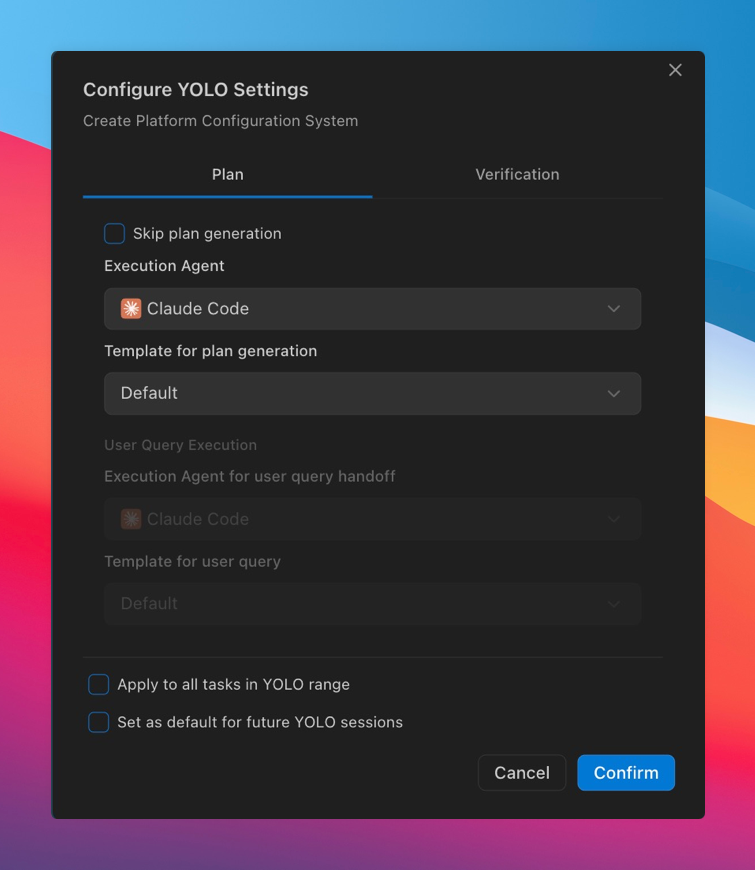
- Execution Agent: Choose from YOLO-compatible agents (marked with )
- Template for plan generation: Optionally apply a custom plan template to include project-specific instructions, testing requirements, or coding standards
- Complex implementations requiring structured guidance.
- When you want agents to follow specific architecture patterns.
- For tasks where detailed file-level plans improve code quality.
Verification handoff
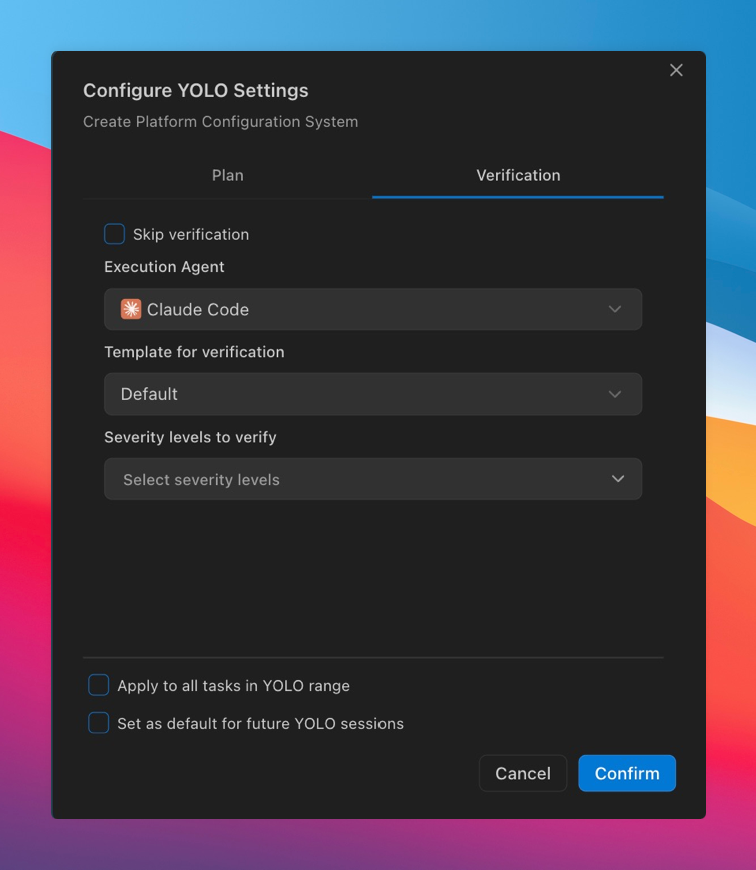
- Skip verification: Check this to bypass verification for this phase
- Execution Agent: Choose from YOLO-compatible agents (marked with )
- Template for verification: Optionally apply a custom verification template to provide fix instructions
- Severity levels to verify: Choose which severity levels to hand off (multiple selections allowed):
- Critical: Blocks core functionality or plan requirements
- Major: Significant issues affecting behavior or UX
- Minor: Small polish items that don’t block functionality
- To automatically iterate on critical and major issues.
- When you want agents to polish implementations before moving to the next phase.
- To maintain quality standards across all phases.
Review handoff
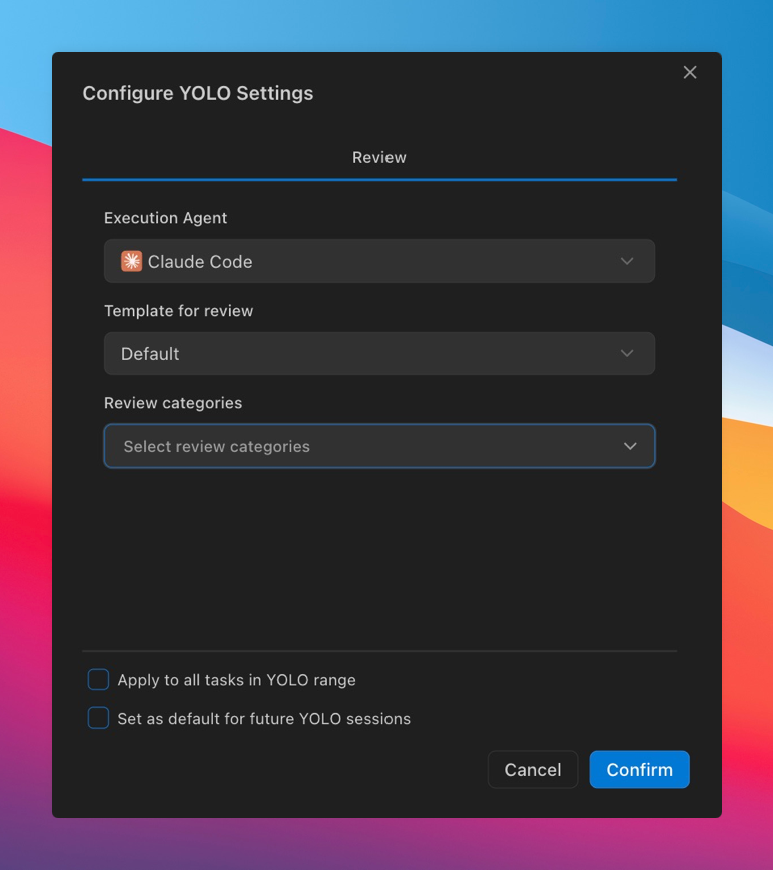
- Execution Agent: Choose from YOLO-compatible agents (marked with )
- Template for review: Optionally apply a custom review template to provide fix instructions
- Review categories: Choose which review categories to hand off (multiple selections allowed)
- When working with Review workflow tasks in YOLO Mode
- To automatically address code review feedback
- To maintain code quality standards through automated review cycles
Managing agents and templates
Agents
YOLO Mode (both regular and Smart YOLO) only works with YOLO-compatible agents that support automated execution. These agents are marked with in the agents documentation. Available agents must be configured in your workspace settings. If your preferred agent isn’t available in the dropdown, see how to add additional agents. For more control over CLI-based agents, you can create Custom CLI Agents with custom arguments and permissions.Templates
To customize handoff prompts with your own instructions, see Templates documentation for creating user query, plan, and verification templates.Preventing interruptions
Artifact slots and rate limits
YOLO Mode runs continuously across multiple phases, consuming artifact slots as it progresses. If you run out of slots during execution, YOLO Mode will pause until slots are available again.To avoid interruptions, consider enabling automatic instant refills in your VS Code settings. Learn more about artifact slots, instant refills, and automatic pay-as-you-go in the Pricing & Usage Limits documentation.
Keep your screen active
Important: YOLO Mode requires an active connection to your IDE. If your computer goes to sleep or the screen times out, the automation will stop. Recommendations:- Disable screen timeout/sleep mode during YOLO Mode execution.
- Keep your IDE window active and visible.
- Consider running long YOLO Mode sessions when you can monitor progress.
FAQ
What happens if YOLO Mode hits a rate limit?
What happens if YOLO Mode hits a rate limit?
YOLO Mode will pause when you run out of artifact slots. You can either wait for slots to recharge based on your plan’s recharge rate, or use instant refills ($0.50 per slot). To avoid interruptions, consider enabling automatic instant refills in your VS Code settings, which will automatically refill slots without prompting. Once slots are available, you’ll need to manually resume YOLO Mode from where it stopped.
Can I change configuration while YOLO Mode is running?
Can I change configuration while YOLO Mode is running?
Yes, but only for phases that haven’t started yet. You can modify configuration for upcoming phases while YOLO Mode is running. However, you cannot change settings for the currently executing phase or phases that have already completed. To adjust settings for future phases, update your configuration and the changes will apply when those phases begin.
Can I use different agents for different phases?
Can I use different agents for different phases?
Yes! Each phase can be configured with its own coding agent selection. This allows you to use specialized agents for specific types of work. For example, you might use one agent for frontend phases and another for backend phases.
What if my computer goes to sleep during execution?
What if my computer goes to sleep during execution?
YOLO Mode will stop if your computer sleeps or the screen times out. Make sure to disable sleep/timeout settings before starting long automation runs. You can resume from the last completed step once your computer wakes up.
Does YOLO Mode work with all coding agents?
Does YOLO Mode work with all coding agents?
No. YOLO Mode only works with YOLO-compatible agents (marked with ) that support automated execution. Other agents require manual interaction and are not compatible with YOLO Mode’s automated workflow.
How do templates work with YOLO Mode?
How do templates work with YOLO Mode?
Templates wrap Traycer’s generated content with your custom instructions. You can select different templates for user query handoff, plan handoff, and verification handoff. This allows you to maintain consistent project standards across automated executions. Learn more in the Templates documentation.
What's the difference between user query handoff and plan handoff?
What's the difference between user query handoff and plan handoff?
User query handoff: Skips detailed planning and sends the phase query directly to the agent. Faster, but provides less structured guidance.Plan handoff: Generates a detailed implementation plan first, then hands it to the agent. Takes more time but provides better structure and reduces agent drift.Choose based on task complexity and how much guidance your agent needs.
Can I use Custom CLI Agents with YOLO Mode?
Can I use Custom CLI Agents with YOLO Mode?
Yes! Custom CLI Agents that use YOLO-compatible CLI tools (like Claude Code CLI, Codex CLI, or Gemini CLI) work seamlessly with YOLO Mode. You can create custom templates with special flags like
--dangerous or custom paths, and they’ll appear in the agent selection dropdown. Learn more in the Custom CLI Agents documentation.Related documentation
Epic Mode
Learn about Epic Mode and how Smart YOLO automates Epic execution.
Phases Mode
Learn about the underlying Phases workflow that YOLO Mode automates.
Plan Workflow
Understand the Plan workflow for implementation tasks.
Review Workflow
Understand the Review workflow for code review tasks.
Verification
Learn how Traycer validates agent implementations and categorizes issues.
Supported Agents
Browse the full list of coding agents and add additional agents.
Templates
Create custom Handlebars templates to enhance automated handoffs.