

Overview
Traycer allows you to create custom CLI agent with custom arguments and permissions for any CLI-based coding agent. This powerful feature enables you to pass special flags and create platform-specific configurations tailored to your workflow.What are Custom CLI Agents?
Custom CLI agents allow you to:- Execute any CLI-based coding agent with custom arguments.
- Pass special flags like
--dangerousor--forcefor elevated permissions. - Create platform-specific CLI agent for different environments.
Available Template Tags
Custom CLI agents support the following environment variables set by Traycer at runtime:| Variable | Bash / Git Bash | PowerShell |
|---|---|---|
TRAYCER_PROMPT | "$TRAYCER_PROMPT" | "$env:TRAYCER_PROMPT" |
TRAYCER_PROMPT_TMP_FILE | "$TRAYCER_PROMPT_TMP_FILE" | "$env:TRAYCER_PROMPT_TMP_FILE" |
TRAYCER_PHASE_ID | "$TRAYCER_PHASE_ID" | "$env:TRAYCER_PHASE_ID" |
TRAYCER_PHASE_BREAKDOWN_ID | "$TRAYCER_PHASE_BREAKDOWN_ID" | "$env:TRAYCER_PHASE_BREAKDOWN_ID" |
TRAYCER_TASK_ID | "$TRAYCER_TASK_ID" | "$env:TRAYCER_TASK_ID" |
TRAYCER_SYSTEM_PROMPT | "$TRAYCER_SYSTEM_PROMPT" | "$env:TRAYCER_SYSTEM_PROMPT" |
The prompt content. At least one of
TRAYCER_PROMPT or TRAYCER_PROMPT_TMP_FILE must be referenced in your CLI agent template.Temporary file path containing the prompt content. Ideal for large prompts that exceed environment variable size limits.
Use commands like
cat "$TRAYCER_PROMPT_TMP_FILE" (Bash) or Get-Content -Raw "$env:TRAYCER_PROMPT_TMP_FILE" (PowerShell) to read and pass the prompt content to the CLI agent at runtime.
The temporary file is automatically cleaned up by Traycer after 30 seconds.Per-phase identifier for maintaining session across plan and verification.
Phase breakdown identifier for maintaining session across current phase list.
Task identifier for maintaining session across all phase iterations, plans, and verification execution
System prompt to append to the CLI agent (environment variable set by Traycer at runtime). Use this with —append-system-prompt or equivalent flag to pass trusted instructions at the system level.
Creating Custom CLI Agents
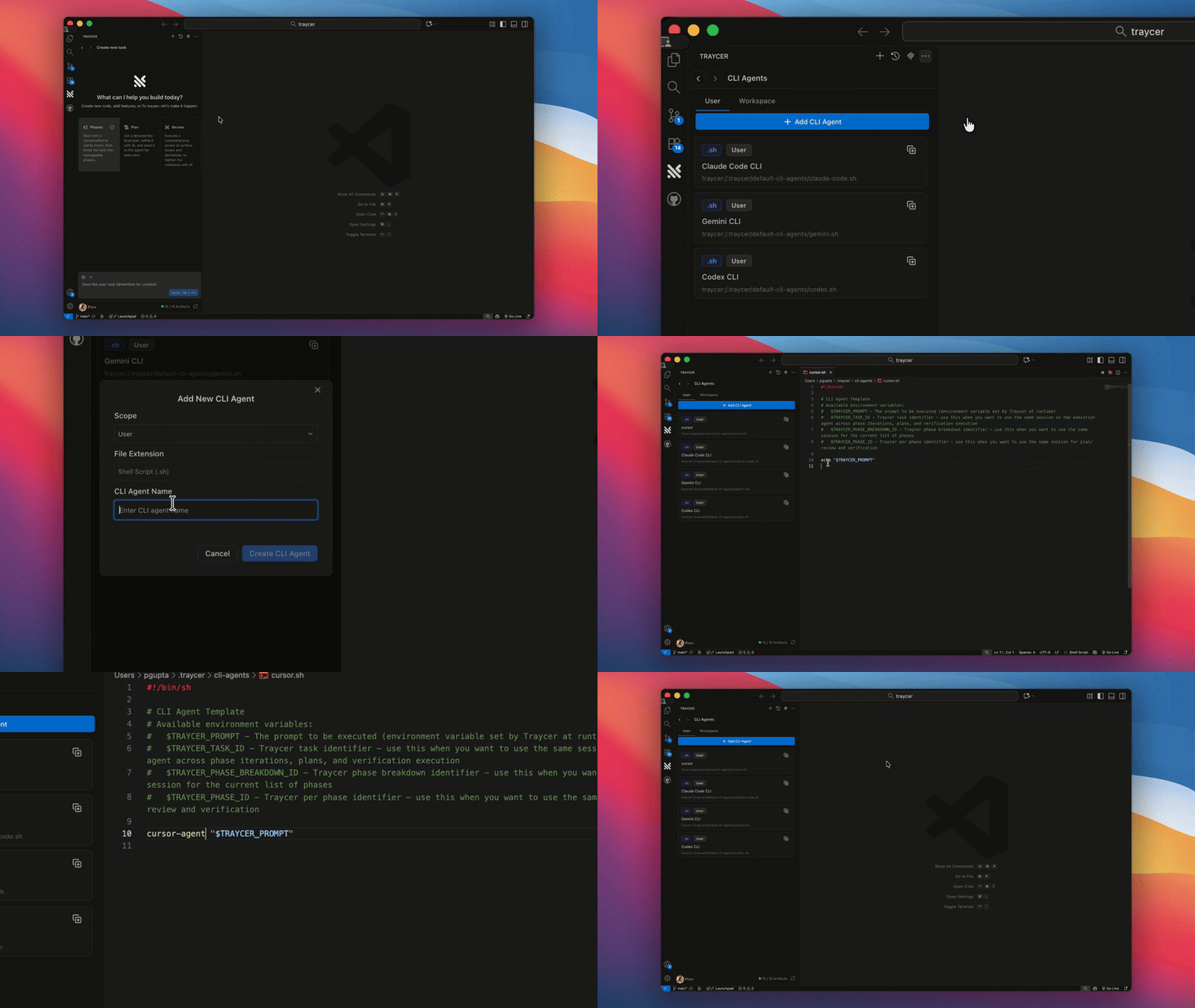
1. Open Manage CLI Agents
Click the three dots on the top of the sidebar to open the context menu, then click “Manage CLI Agents”.
3. Choose scope
Select either User (personal CLI agents available across all projects) or Workspace (project-specific CLI agents stored in workspace settings).
4. CLI Agent Name
Provide a descriptive name for your custom CLI agent and click “Create CLI Agent”.
Template Scopes
Custom CLI agents can be created in two different scopes:- User scope: Personal CLI agents that are available across all your projects. These are stored in the home directory under
.traycer/cli-agentsand travel with you. - Workspace scope: Project-specific CLI agents that are stored in your workspace root under
.traycer/cli-agents. These are ideal for team-shared configurations or project-specific agent setups.
Popular CLI Agents
Here are some popular CLI-based coding agents you can set up:- Claude Code CLI
- Codex CLI
- Gemini CLI
- Cline CLI
- Factory Droid CLI
- Cursor CLI
- Aider
The following are frequently used arguments. For more details, visit the official documentation.BasicVerboseDangerous Mode
Using Custom Paths
If your CLI agent is installed at a custom location, you can specify the full path in your template:Use Cases
Custom CLI agents are particularly useful for:- Passing dangerous/elevated permissions flags.
- Using custom model configurations.
- Setting specific output formats.
- Creating environment-specific agent configurations.
FAQ
Can I pass dangerous or elevated permission flags?
Can I pass dangerous or elevated permission flags?
Yes, you can pass any flags supported by your CLI agent, including
--dangerous, --force, or other elevated permission flags. However, be cautious as these flags grant the agent more control over your system. Always understand what permissions you’re granting before using such flags.How do I share custom CLI agents with my team?
How do I share custom CLI agents with my team?
What's the difference between User and Workspace scope?
What's the difference between User and Workspace scope?
User scope CLI agents are stored in your personal settings and available across all projects. Workspace scope CLI agents are project-specific and stored in the workspace settings, making them ideal for team collaboration.
Can I edit an existing CLI agent?
Can I edit an existing CLI agent?
Yes, you can modify any custom CLI agent by clicking on it within the Custom CLI Agents section of Traycer settings. This will open the file for editing.
What's the difference between Bash and PowerShell syntax for environment variables?
What's the difference between Bash and PowerShell syntax for environment variables?
Bash (Linux/macOS/Git Bash) and PowerShell (Windows) use different syntax to reference environment variables:
Key differences:
| Shell | Syntax | Example |
|---|---|---|
| Bash / Git Bash | "$VARIABLE_NAME" | claude "$TRAYCER_PROMPT" |
| PowerShell | "$env:VARIABLE_NAME" | claude "$env:TRAYCER_PROMPT" |
- Bash uses
$followed by the variable name directly (e.g.,$TRAYCER_PROMPT) - PowerShell uses
$env:prefix before the variable name (e.g.,$env:TRAYCER_PROMPT) - Double quotes are recommended in both shells to handle prompts containing spaces or special characters
What happens if I don't include the $TRAYCER_PROMPT or $TRAYCER_PROMPT_TMP_FILE environment variable?
What happens if I don't include the $TRAYCER_PROMPT or $TRAYCER_PROMPT_TMP_FILE environment variable?
The CLI agent validation will fail because at least one of
$TRAYCER_PROMPT or $TRAYCER_PROMPT_TMP_FILE must be referenced in your CLI agent template to pass the task instructions to the agent.When should I use TRAYCER_PROMPT_TMP_FILE instead of TRAYCER_PROMPT?
When should I use TRAYCER_PROMPT_TMP_FILE instead of TRAYCER_PROMPT?
TRAYCER_PROMPT is the recommended default for most use cases. Use TRAYCER_PROMPT_TMP_FILE when:- Dealing with very large prompts (multiple files, extensive context)
- Encountering environment variable size limits (Windows: ~32KB, Linux/macOS: varies)
- Experiencing prompt truncation issues
TRAYCER_PROMPT_TMP_FILE directly in your commands just like TRAYCER_PROMPT - no need for file reading commands.How does TRAYCER_PROMPT_TMP_FILE work internally?
How does TRAYCER_PROMPT_TMP_FILE work internally?
Traycer creates a temporary file containing the prompt content and sets
TRAYCER_PROMPT_TMP_FILE to the file path. When you reference $TRAYCER_PROMPT_TMP_FILE in your template, you need to read the file content using commands like cat "$TRAYCER_PROMPT_TMP_FILE" (bash/sh) or Get-Content -Raw "$env:TRAYCER_PROMPT_TMP_FILE" (PowerShell). This approach bypasses environment variable size limits that can cause issues with very large prompts. The temporary file is automatically cleaned up by Traycer after 30 seconds.Can I use custom CLI agents with YOLO Mode?
Can I use custom CLI agents with YOLO Mode?
Yes, custom CLI agents work with YOLO Mode for automated execution.
Can I have multiple versions of the same agent?
Can I have multiple versions of the same agent?
Yes, you can create multiple custom CLI agents with different names that use the same underlying CLI tool. For example, you could have “Claude Verbose”, “Claude Dangerous”, and “Claude Standard” - each with different flags but all calling the same
claude CLI agent.What if the CLI tool isn't installed on my system?
What if the CLI tool isn't installed on my system?
Traycer does not install CLI agents for you. You must install the CLI tool separately before creating a custom CLI agent. We recommend testing the CLI command in your terminal first to ensure it works correctly before adding it to an agent.