> ## Documentation Index
> Fetch the complete documentation index at: https://docs.traycer.ai/llms.txt
> Use this file to discover all available pages before exploring further.
# Organizations and Teams
> Provides centralized billing, seat management, privacy controls, and team collaboration.
Organizations and teams are account-level features for seats, shared billing, and team access.
## Adding organizations
To add your GitHub organization to Traycer:
Click on the account dropdown in the top navigation bar and select "Fetch Organizations".
A GitHub OAuth window will open. Review and grant the necessary permissions for your organization.
Once permissions are granted, you can switch between your personal account and organization accounts using the account dropdown.
## Seat management
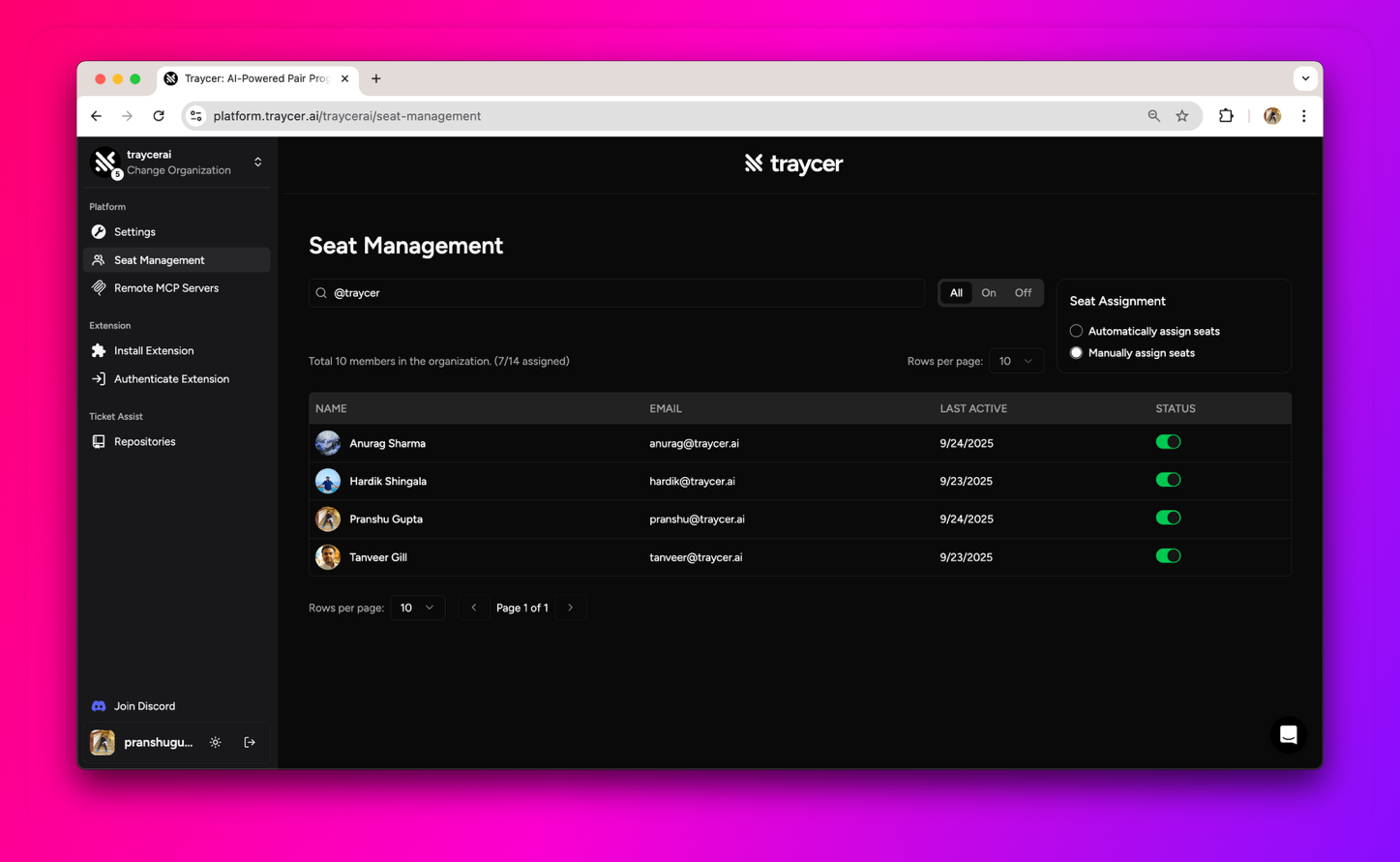
Navigate to your organization's **Seat Management** page to configure how seats are assigned to members.
### Automatic assignment mode
When **Automatic Assignment Mode** is enabled, any new member added to your organization is instantly granted a paid seat and full access to Traycer features. This ensures seamless onboarding and eliminates manual intervention for seat allocation.
### Manual assignment mode
In **Manual Assignment Mode**, admins can change the status for any user to enable or disable their seat, giving you full control over who has access to Traycer features.
**Important**: Disabling a seat does not decrease your subscription seat count. The disabled seat can be enabled for another user, allowing you to reassign seats within your subscription limit without changing your billing.
***
## Managing subscription seats
To add or remove seats from your subscription:
Navigate to the **Settings** page for your organization.
Click **"Manage Subscription"** to access your billing settings.
Click **"Current Plan"** under your subscription. You'll see a counter where you can increase or decrease your seat count.
**Billing timing**: Additional seats are added instantly and billed immediately. Seat decrements take effect at the end of your current billing cycle.
***
## Frequently Asked Questions
Yes, Traycer supports Single Sign-On through GitHub.
Organization pricing follows the same per-seat model as individual plans. Each subscription seat in your organization is billed at the same rate as individual subscribers, with no additional fees for organizations.
Privacy controls are managed at the organization level. Your organization settings determine which cloud and inference features are available for sensitive work.
Yes. Shared work can be made available to your organization so teammates can collaborate on the same specs and tickets. From the share dialog, select your organization and choose an access level (`Editor` or `Viewer`), then click `Share`.